
Update
Version 0.1.6 - Build 150
Conductor debut, brand new playback controls, updates to Shuffle, a revamped Search experience, a wave of stability improvements and more

Introducing Conductor - playback that learns as you play
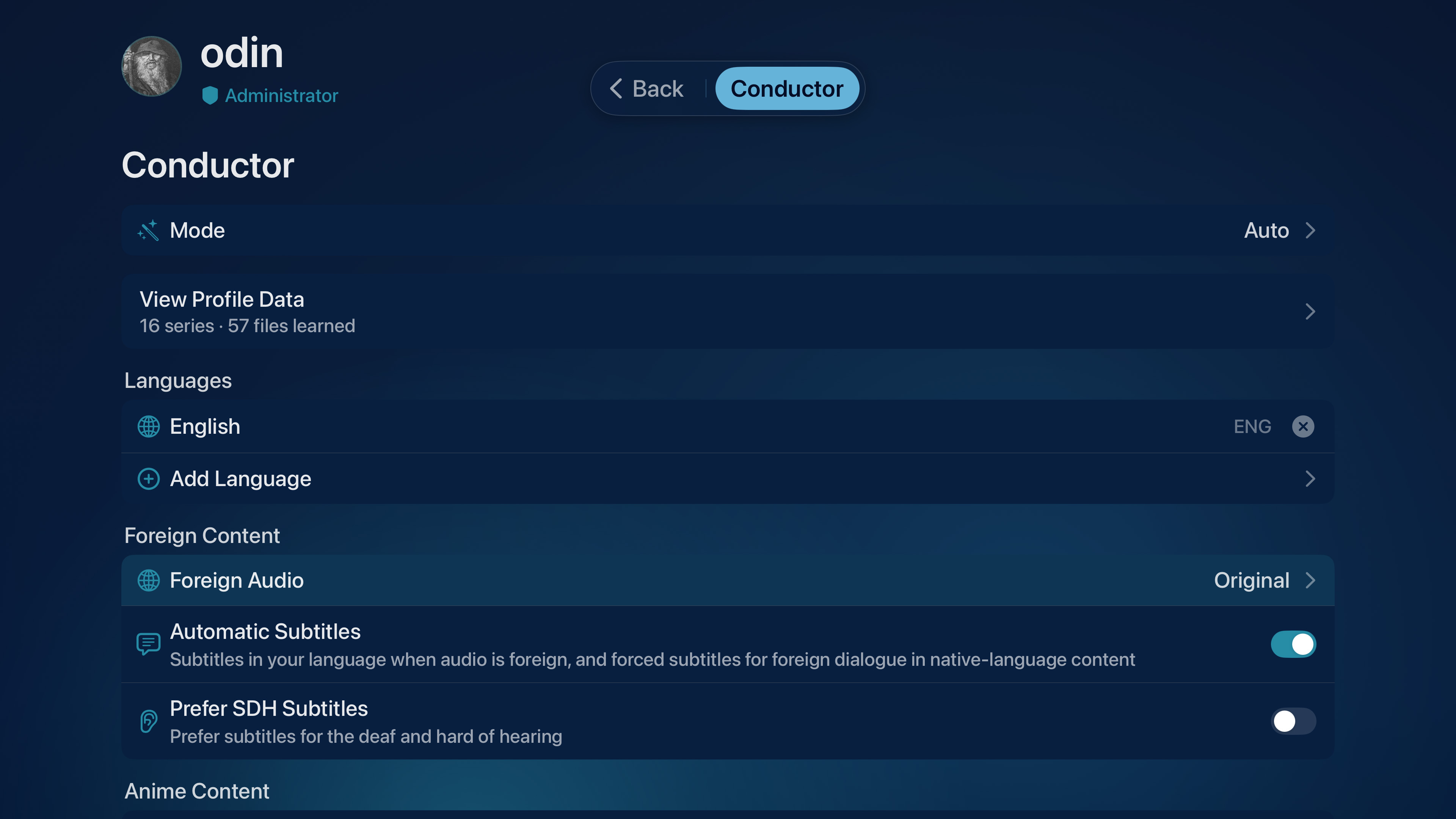
Neptune already gives you extensive control over playback. You can set how subtitles behave, which audio track is chosen, your preferred quality profile, and more. But these options all share one limitation - they’re static values, set once and buried in nested Settings menus. This is where Conductor comes in.
Conductor observes your choices over time and builds a playback profile tailored to you. Setup begins by establishing three ground truths - your primary language, when subtitles should appear, and how you like to watch foreign content (subbed or dubbed). Once that baseline is configured, Conductor learns from every playback decision you make and automatically applies what it learns across all of your media - even content you’ve never watched before.
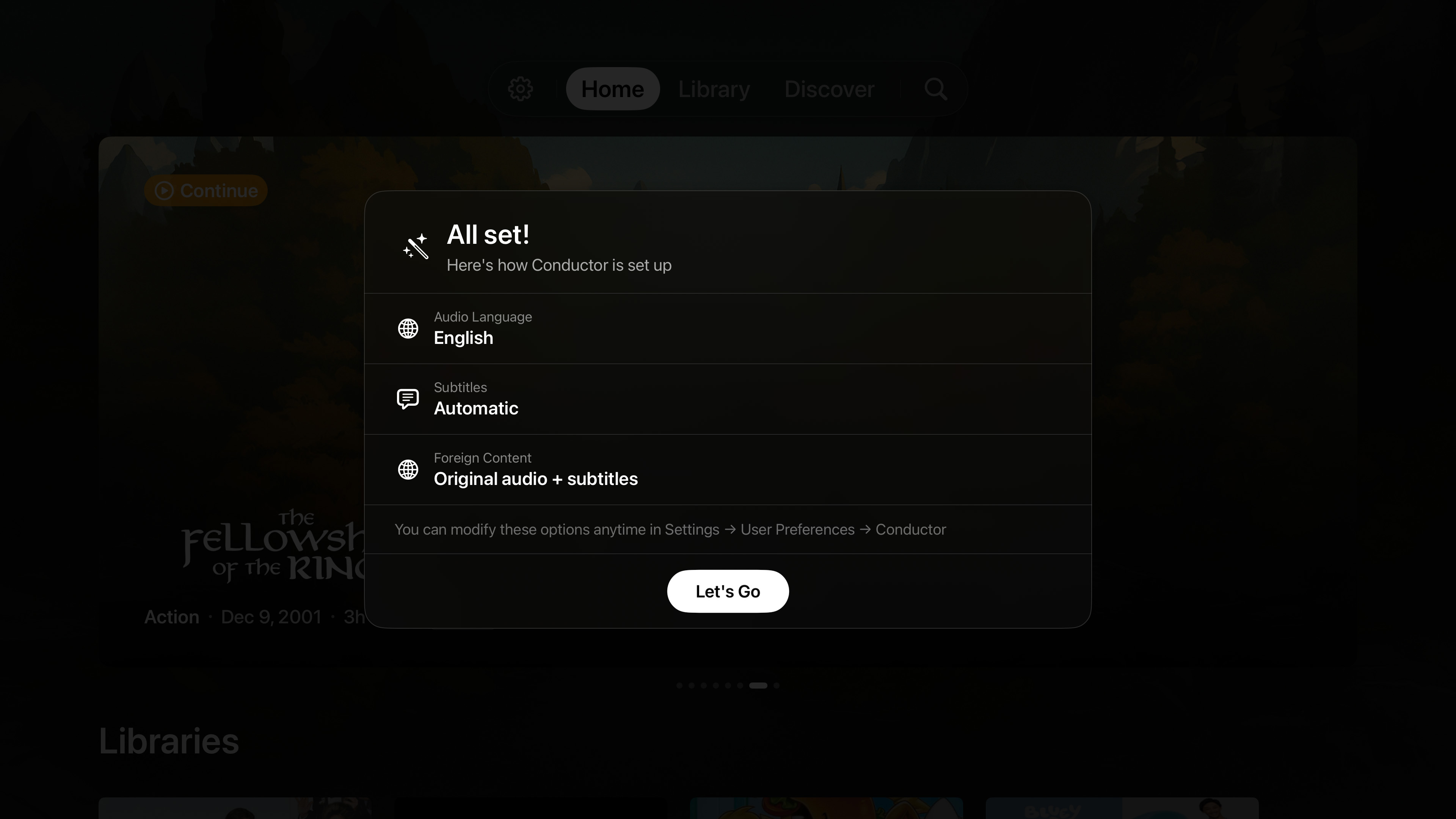
Say you usually watch content in its original language with subtitles in your native tongue, but for one particular series you prefer a dub. The moment you switch, Conductor notes the decision and creates a series-specific exception - just for that show. The next episode automatically plays the dubbed track in your preferred language, without disturbing how you watch everything else.
Conductor doesn’t just track choices - it understands their context. It knows the difference between a one-time exception and a genuine pattern, and it can learn nuanced rules, like preferring a dub when the original audio is German but the original audio when it’s in Japanese. It also weighs every decision against what was actually available. If you mostly watch in 5.1, that alone doesn’t make 5.1 your preference. But if you repeatedly choose 5.1 when 7.1 and other options are available, Conductor recognizes that as a deliberate choice and lets it guide what it learns.
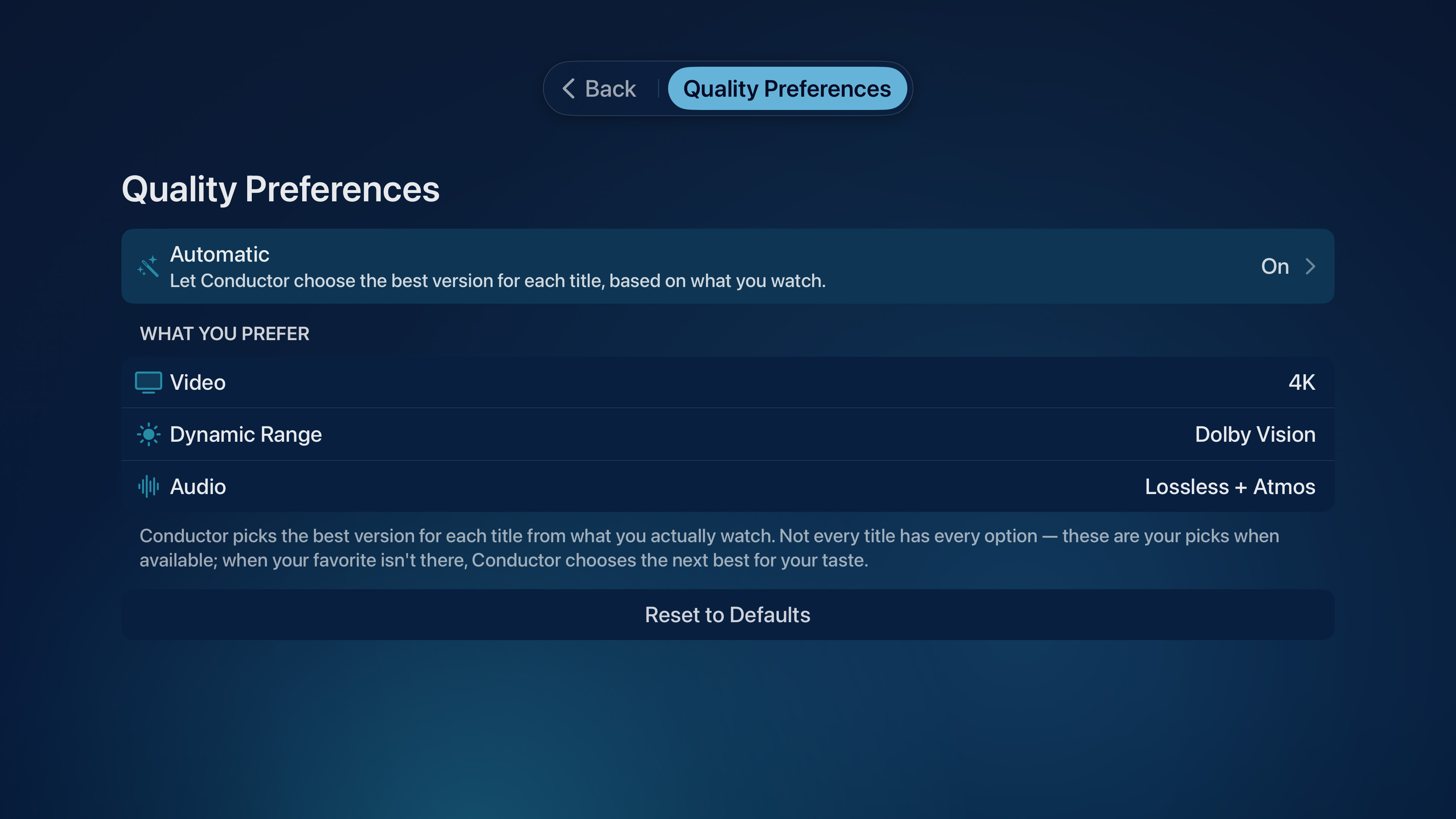
That same intelligence extends to how your media is delivered. Quality preferences are now handled by Conductor, so your preferred quality choices, such as resolution, dynamic range and even transcoding preferences, are learned and dynamically adapted to match your preferred configuration. No more reaching for the same setting every time.
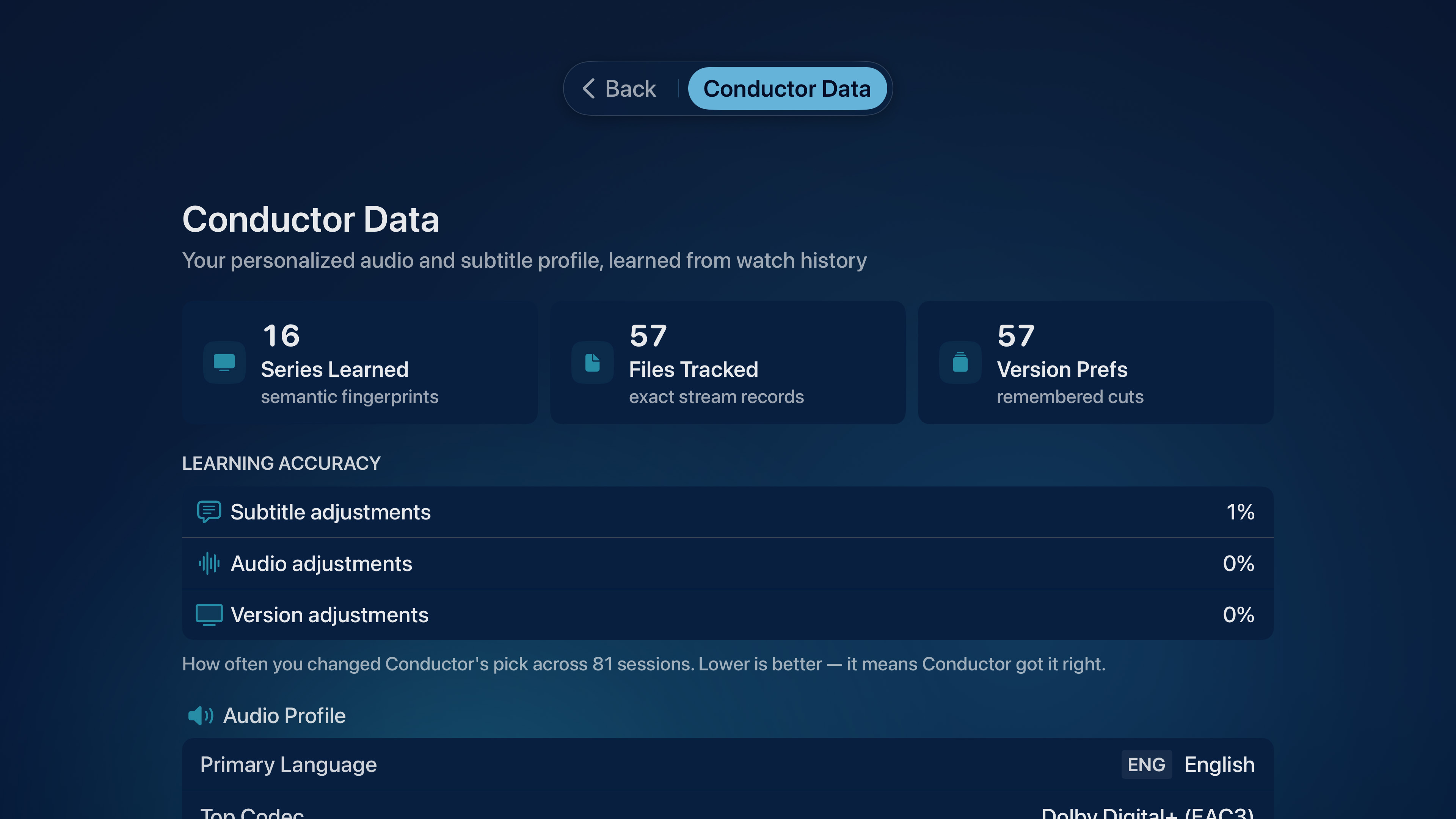
You can see everything Conductor has learned about you from the User Preferences menu. Learning Accuracy reflects how often its choices were corrected by the user. The lower the value, the less manual intervention was required.
All playback preferences are set to ‘auto’ by default with the adoption of Conductor. If you prefer to set things up manually, you can always turn the feature off by using pre-set values for each category. Keep in mind that a manual override pauses learning for that preference in favor of your explicit choice.
Conductor runs entirely on device, and it can be turned off anytime you’d rather do things the old-fashioned way.
Control the playback experience without leaving the scene
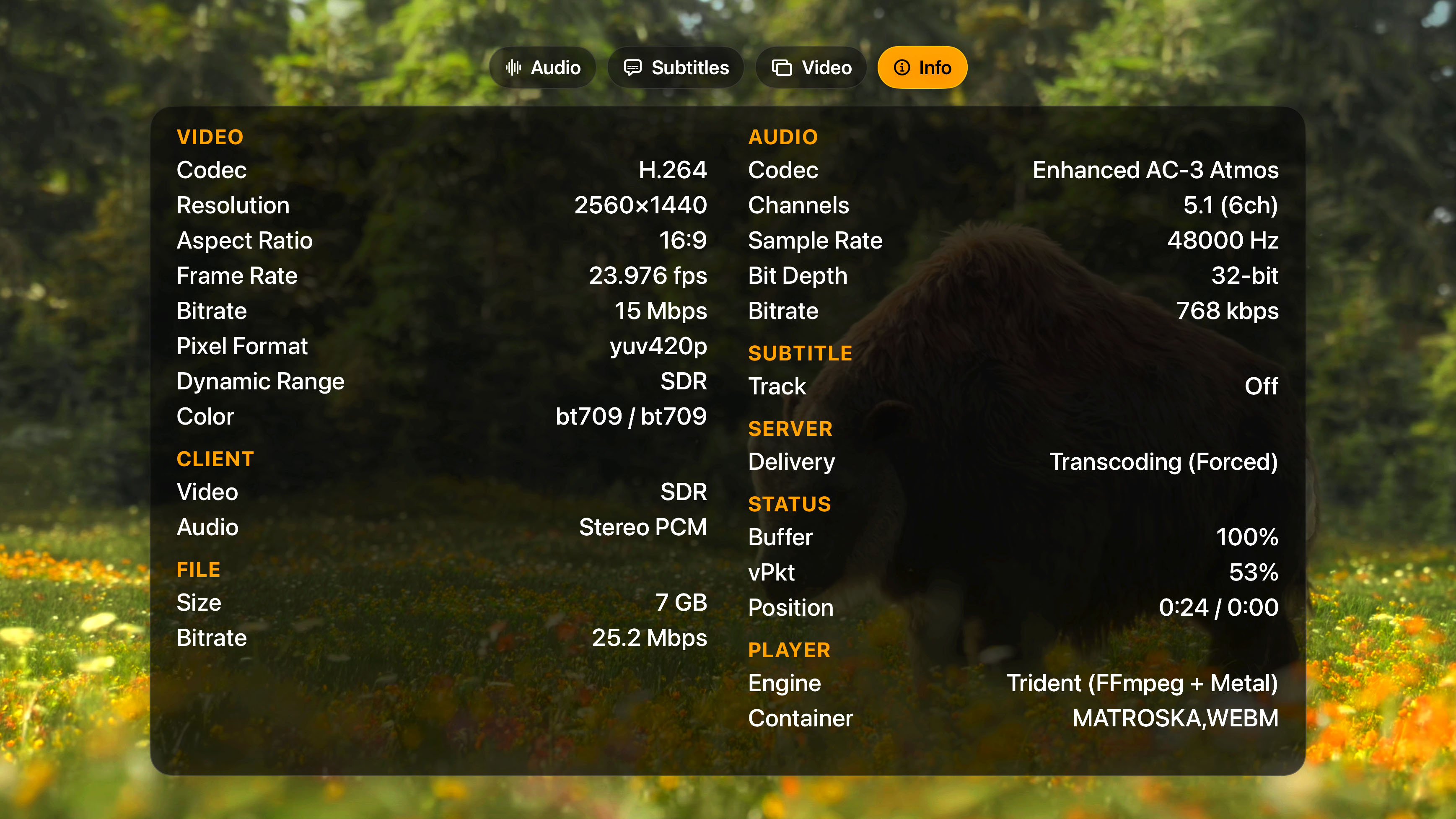
Neptune’s in-player controls have been rebuilt into a single, unified menu. Audio, Subtitles, Video, Chapters, and Info now live together behind a row of floating glass tabs that rise over your video - everything you might reach for mid-playback gathered in one place. Arrange the tabs however you like in Settings, and the panel reshapes itself to whatever you open, expanding for a list of tracks or widening into a full technical readout of the stream.
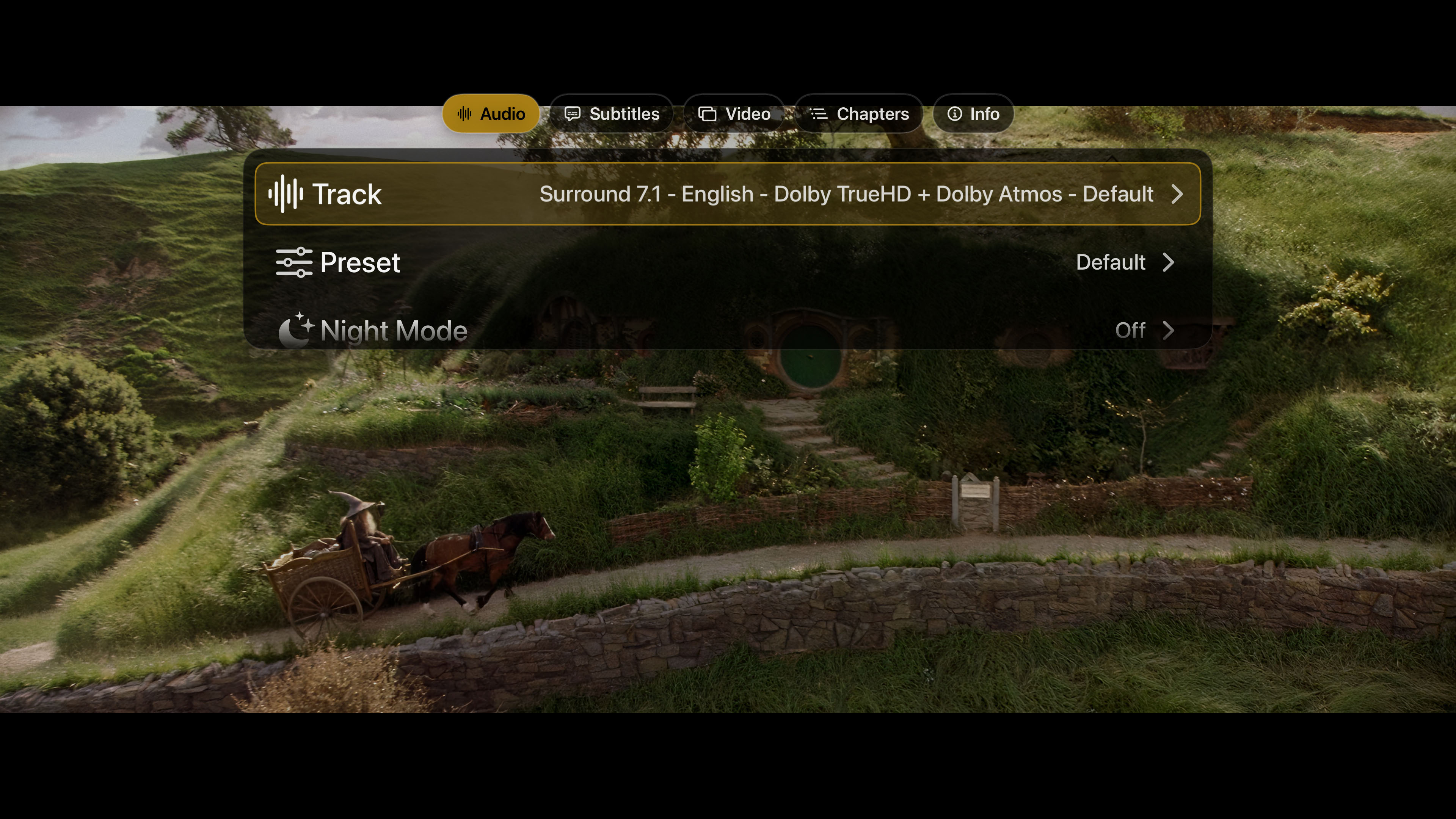
Many of the preferences that previously only lived in Settings can now be accessed directly during playback. Adjustments to audio and subtitle offsets can now be experienced in real time, along with subtitle styling customization and various video options, including transcoding targets.
Joining the new controls are some brand new playback features. These can be accessed at any time and they all work in real time, so your session is never interrupted.
Audio Presets
Think of these as preset EQ options, each designed to deliver a different experience. Maybe you want a little bit more bass for a particular movie, or perhaps you want to amplify dialogue using the ‘Voice’ preset. Choose the one that best fits your needs and the audio adapts in real time, without interrupting playback.
De-Interlacing
This option defaults to Auto, but does allow manual overrides. Useful when playing older footage (like DVDs).
Audio and Subtitle Offsets
You can now offset audio and subtitle timing to align tracks. Very useful not only for tracks that have off timing, but also if you prefer subtitles to appear a tad bit before lines are spoken. Audio and Subtitle offsets can be controlled independently.
Night Mode
Reduces loud noises and music while amplifying spoken audio. This is very useful when watching content without wanting to disturb those around you. You can even program a set schedule for Night Mode, and it will automatically kick in during its active hours and turn off when it’s no longer needed.
The layout of the new playback controls can also be customized, alongside the Action Buttons that sit right above the player controls. So if you prefer the Info tab to be the primary panel displayed when you open up the controls, you can set it to be your primary.
Search smarter, not harder
Neptune already offers easy ways to find your content - whether you prefer to browse your library using filters, discover more about your collection through its in-depth tagging system, or simply search for your favorite movie or show directly. Now, with improvements made to Search and Neptune AI, all of these features work together, offering the most intuitive way to locate media - all from one unified Search.
Search is now faster and sharper than ever. By leveraging Neptune’s own indexers, it draws from tens of thousands of data points to deliver results in real-time. This transcends the ‘search for item by title’ limitations of most other clients and instead delivers a ‘search for item by context’ approach. Find media using keywords, prominent locations, characters, themes, cast and crew, and so much more. When a search engine is contextually aware of your library, it starts to behave less like a title lookup and more like a seasoned librarian. All of this happens locally on your device - and works even when you’re offline.
Improved Shuffle experience
A popular Neptune feature is its dedicated Shuffle Mode. This allows you to toggle on shuffle for a specific series, randomizing which episodes play every time you start a play session. In addition to the Shuffle Mode target, series now have a dedicated Shuffle button that kicks off a shuffled session, without keeping the feature enabled indefinitely.

As Shuffle engages, it loads a random episode from the series catalog. When playback starts, a glass overlay appears at the top to give you some insights about the current episode - including its season, episode number, and the episode’s description. If the episode doesn’t interest you, there’s a Skip button readily available to re-shuffle the deck and deal you a fresh episode.
Once your session is over, you return to the item’s detail page, with your original episode’s resume position fully intact and ready to pickup where you left off. This feature is great for those who just want to sit back and put on a random episode of their favorite show without having to worry about digging through seasons to find an episode they want to watch.
We have Pins at Home
Pins, which previously were only available through the Library, are now available on Home, Movies and Shows pages, respectively. Pinned items appear where you expect them to, with Movies / Shows tabs filtering content between pages and Home containing all possible Pin types.
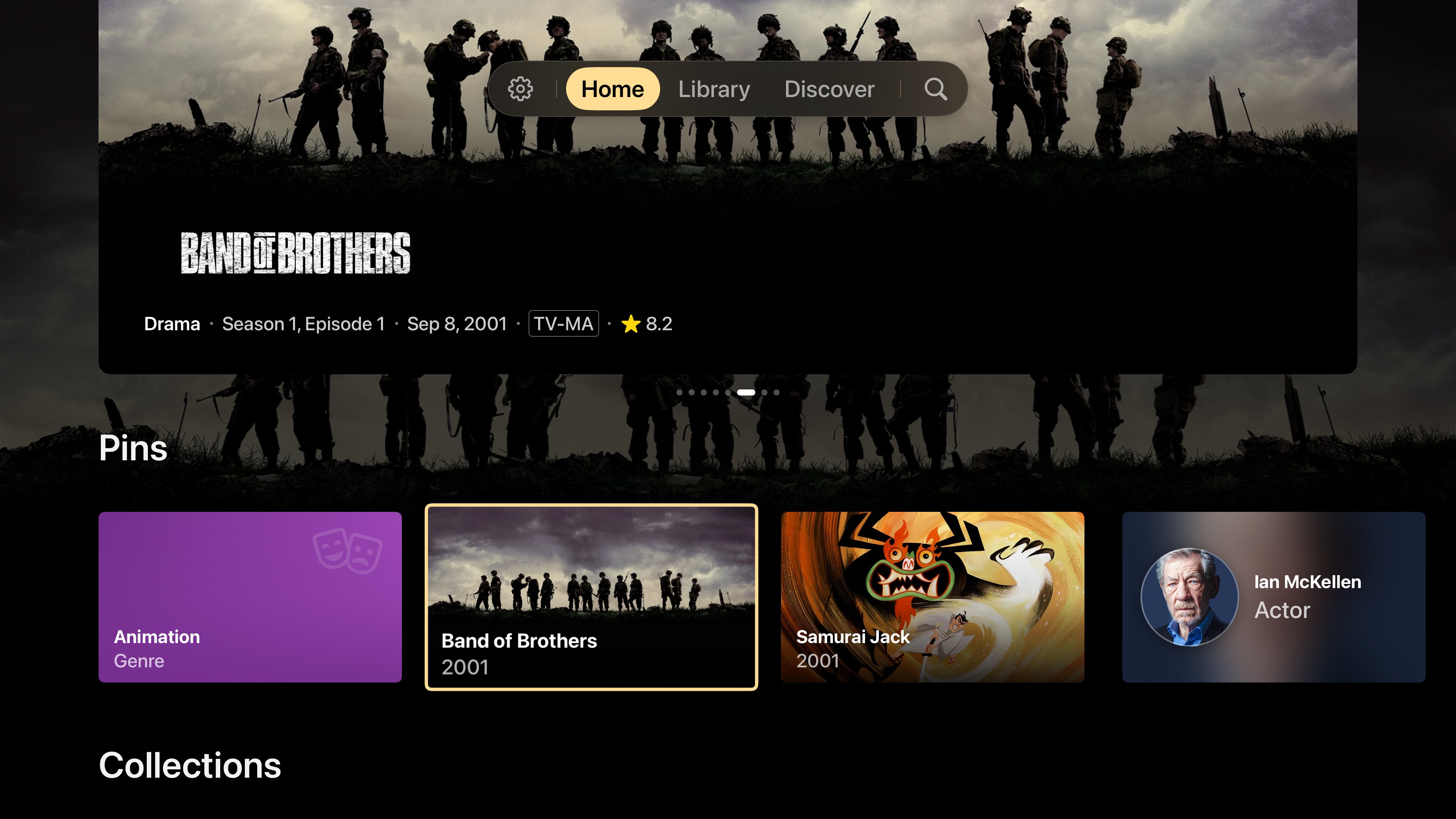
People, genres, tags and more can be Pinned directly to Home, following the order set through the Library. You can Pin an item from anywhere - including from other Pinned items - making the process as easy and straight forward as possible.
E-AC-3 Passthrough Support
Trident now supports E-AC-3 Passthrough when available. This option is not without flaws and is actively being developed. It is not recommended for daily use, but is being made available to everyone in the interest of reporting. Please follow this format when making an E-AC-3 Passthrough report:
A/V OUT OF SYNC: TRUE/FALSE
A/V OUT OF SYNC AFTER: <time> seconds/minutes
A/V SYNC OFFSET APPLIED: <time> ms
A/V STAYED IN SYNC: TRUE/FALSE
This will track if the audio went out of sync, when it occurred, what the manual sync offset applied was, and if that manual offset kept the audio in sync for the remainder of the playthrough. If it went out of sync again, please repeat the last three entries in the same report.
E-AC-3 Passthrough is not recommended for daily use and is intended as an experimental beta feature at this time.
You can enable E-AC-3 Passthrough via ‘Settings -> Playback -> Audio’. If you’re not interested in testing this feature or want to watch your content uninterrupted, please keep this setting disabled.
Various bugfixes and improvements
Neptune now officially supports Jellyfin version 10.11.11, with partial support for RC1/2 of version 12.0. While initial testing proved that it works, it’s too early to tell if changes in the near future will clash.
Onboarding now allows you to send logs by pressing the Play/Pause button on your remote. This will help troubleshoot auth issues and other quirks that occur during onboarding. In addition to that, the onboarding process has been compressed to more closely resemble the Release model. Server admins are still able to tailor the out-of-box experience using the MDM plugin.
Trident gets its own batch of updates, including improvements to AV1 playback, seeking and playback performance. These changes should help those who have been experiencing issues playing certain media.
There are a lot more fixes and improvements - too many to go through. If you experience any issues, please keep reporting!
Neptune Plugin Suite
The plugin suite receives its own series of updates, including a fix to a bug that wouldn’t let users install the suite on certain 10.11 versions of Jellyfin. Indexer syncing is now faster and more reliable between clients, and the Mobile Device Management plugin receives more features.
MDM - Announcements
Server admins can now push announcements to their Neptune users using the Mobile Device Management plugin. From the MDM plugin dashboard, select Add Announcement and draft a new message. You can scope the announcement by user or client - even going as far as to target specific builds or versions. Announcements can be pushed immediately, or scheduled to appear the next time the client starts. This grants server administrators an easy to use tool to communicate with their users using Neptune’s native UI.
State of Neptune for iOS
You might be wondering what’s taking so long. Turns out the demo server Neptune uses to validate its functionality during the App Review became unusable - seemingly right before the reviewer got around to it. The bad news is that the review failed, but the good news is that we’re back in the queue and additional measures have been taken to [hopefully] prevent this sort of thing from happening again. An announcement will be made when Neptune for iOS is ready.