
Release
Neptune: Version 1.3
Neptune Version 1.3 adds Custom Sections, downloadable Subtitles, a redesigned Spotlight and Episode galleries, playback stability improvements and more.

Spotlight Refresh
At the heart of Neptune’s Home page is Spotlight, bringing new releases, recent additions, and the stories you’re still watching into view. With Neptune 1.3, Spotlight has been redesigned to offer a richer presentation and more useful information at a glance.
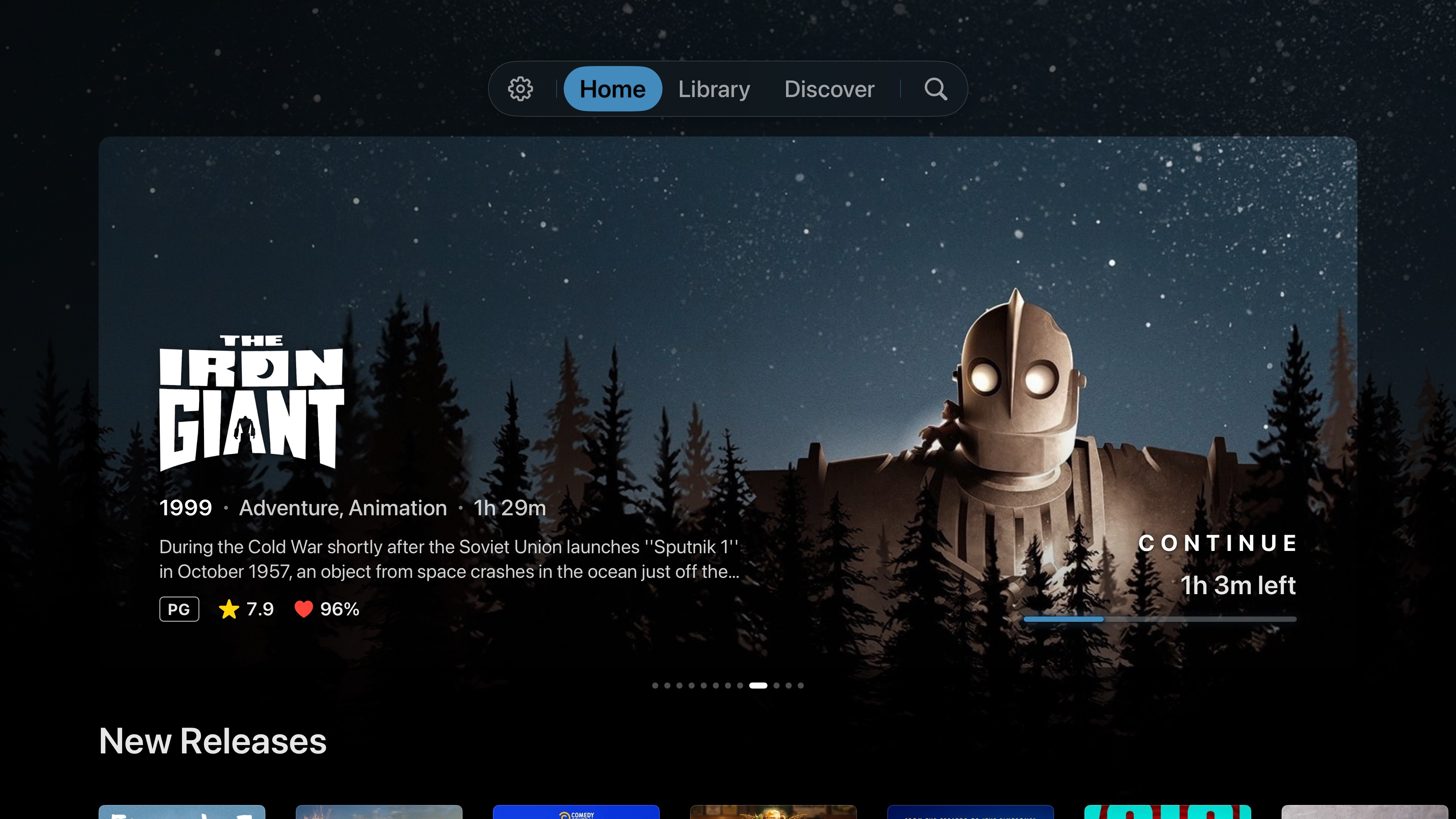
New episodes and recent additions display how recently they arrived, while Continue Watching brings your progress and remaining time directly into Spotlight. With adaptive themes enabled, accent details take their color from the featured artwork.
On Apple TV, the featured artwork now aligns precisely with the backdrop behind it, creating one continuous image. As you move down the page, the artwork gently shifts beneath your content, adding a sense of depth and motion as you explore. Smooth transitions keep the banner and background moving together as each new title comes into view.
Immersive Spotlight
For an even more expansive experience, Apple TV users can enable Immersive Spotlight. With this feature enabled, the banner’s edges dissolve into the surrounding background, letting the artwork fill the screen while keeping the details you need clearly in view.
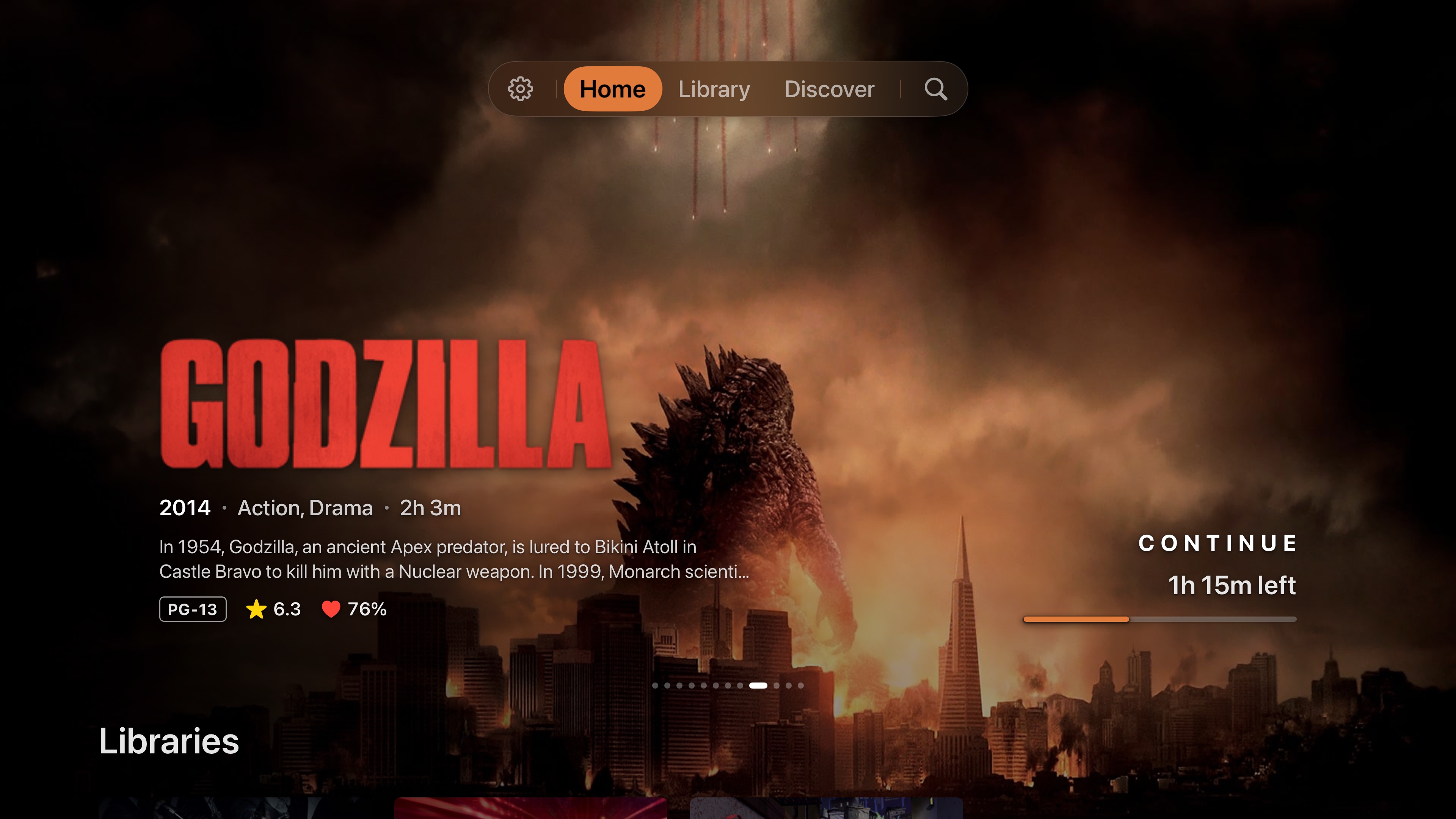
The result is a more cinematic presentation that gives featured artwork room to breathe without changing how Spotlight works. Titles, metadata, and playback information remain easy to read, while the transition between the banner and the rest of the Home page feels more seamless.
To use the Immersive Spotlight, navigate to Settings → Home → Spotlight and enable it.
Custom Sections
Neptune, like most media clients, ships with a curated Home page that displays your content as rows across various sections. Each section follows its own set of rules, surfacing content through familiar categories such as Recently Added, Continue Watching, and Favorites.
Beyond these built-in sections, Neptune also lets you Pin virtually anything to your Home page. You can create quick access to People, Collections, Genres, and even specific moments within a movie or episode. By pinning a timestamp, you can return to a favorite scene instantly, without having to manually seek to it each time.
For most people, Neptune’s built-in sections and Pins provide everything needed to keep a library organized and easy to navigate. For those who want more control, Neptune now introduces Custom Sections.
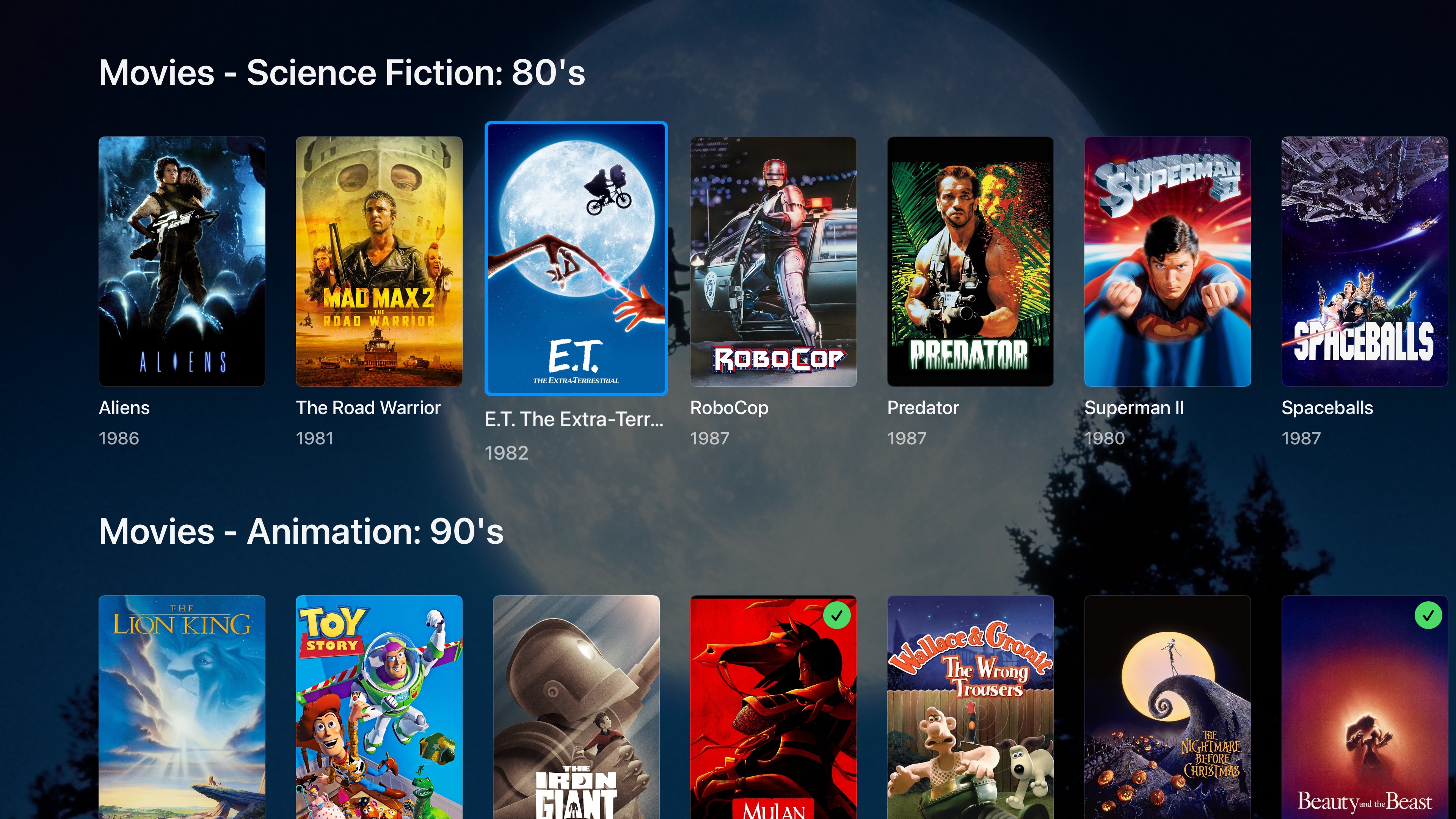
Create a row of unwatched science-fiction films from the 1980s, gather movies featuring a favorite actor, or give a specific collection its own dedicated place on Home. Choose which libraries and media types to include, then refine the results using filters for genres, people, collections, years, watched status, and favorites.
Give your section its own name, choose its sort order and row size, and position it alongside your existing Home sections. If you choose Random sorting, Neptune presents a fresh selection each time you launch the app and refreshes the section hourly while Home remains active.
To get started, long-press the Home tab and select Edit Layout. On iOS, select Options first. On tvOS, you can also navigate to Settings → Home → Sections → Customize Home Screen Layout to open the layout editor.
With the Neptune Plugin Suite, Custom Sections are backed up and synced across your devices. Create a section on your iPhone and it will appear in the same position the next time you open Neptune on your Apple TV.
Custom Sections for Your Users
Server administrators can also create Custom Sections through Neptune’s MDM suite. Sections can be added to Server Defaults, reusable Server Profiles, or an individual user’s managed Home layout. Existing library permissions are always respected, so a managed section will never surface content a user doesn’t have access to.
Subtitles Pro
Subtitles Pro, included with Neptune Pro, adds the ability to search for and download additional subtitles seamlessly during playback.
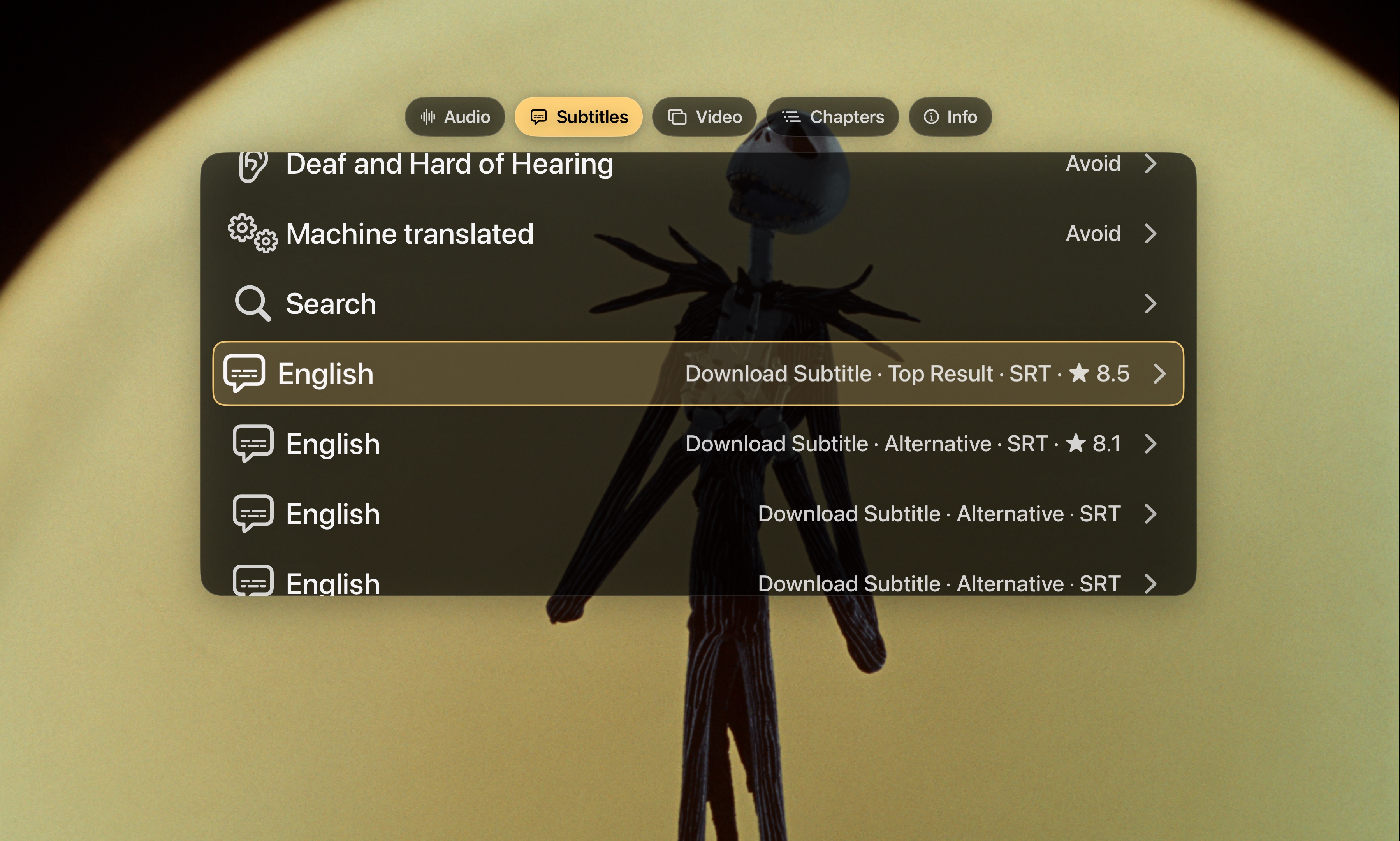
During playback, choose Find More Subtitles from the subtitle menu. Conductor, Neptune’s audio and subtitle selection system, automatically applies your preferred languages and accessibility settings to the search.
Results include the subtitle language, type, and available ratings, with the highest-rated options automatically surfaced at the top.
Real-time Synchronization
Subtitles are no good if they’re not in sync with what you’re watching.
Whenever Neptune downloads a subtitle file, it automatically audits it for validity and compatibility. As part of that process, Neptune checks whether the subtitle timing matches the specific version of the content being played.
Using Neptune’s Trident engine, subtitle timing is analyzed and synchronized against your playback session in real time. The entire process happens automatically in the background, with a subtle syncing indicator showing when adjustments are underway.
Once synchronization is complete, the corrected subtitle is retained and can be selected again at any time without needing to repeat the process.
Keep it local, or save it to your server
By default, downloaded subtitles remain on your device, but you can also configure Neptune to automatically save them back to your server. Subtitles saved to your server become available to other users, as well as every other compatible third-party client, with synchronization already applied and the file ready for playback.
To enable this option, navigate to Settings → Playback → Subtitles.
Neptune AI - Relationships in Media
This release introduces Neptune AI’s newest search model, built to understand media with greater depth and context than ever before. Searches now draw from a much broader body of structured media knowledge and plot evidence, allowing details such as character names, cast members, production information, and scenes to lead you to the right title.
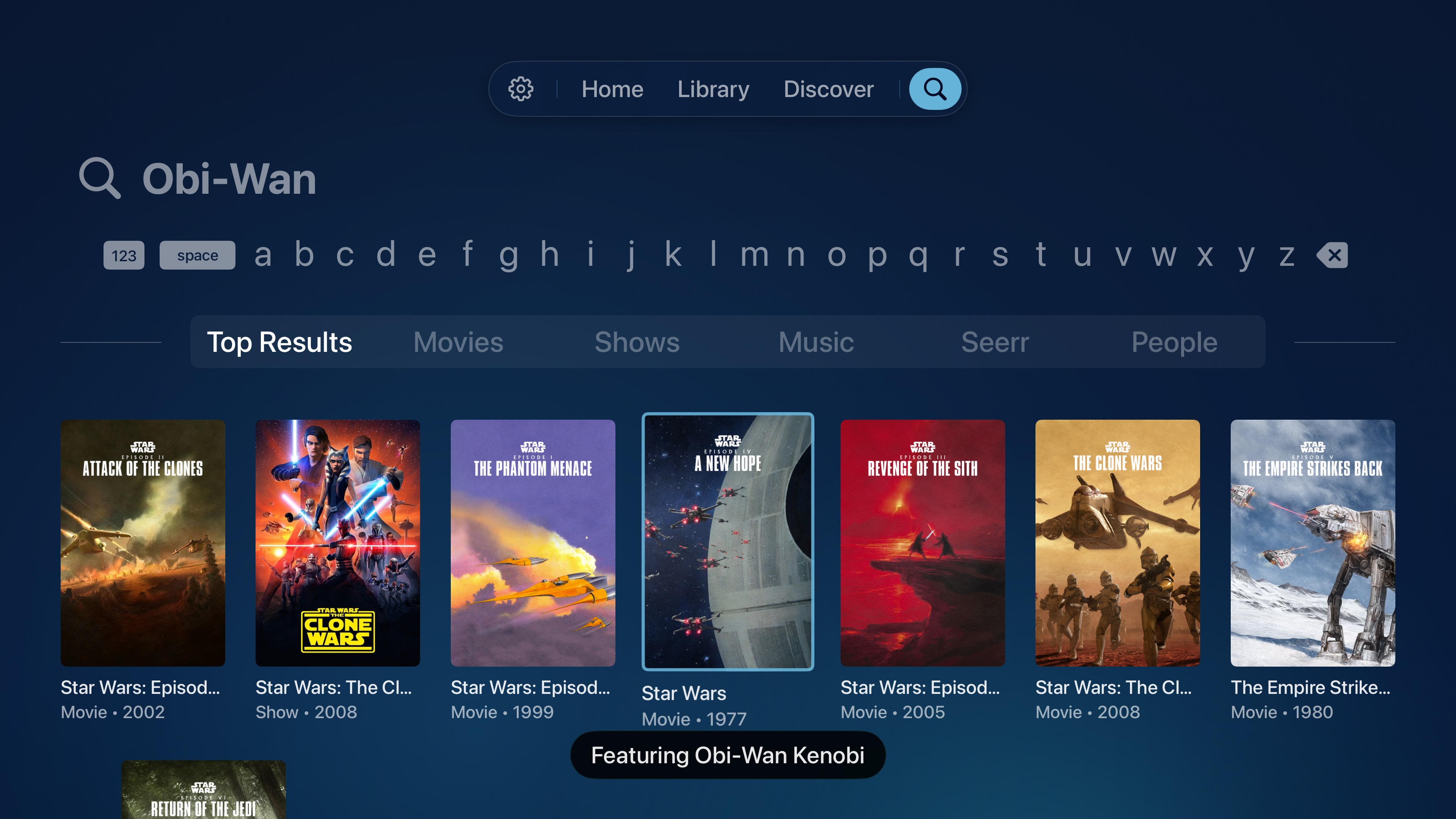
Because the model understands these relationships directly, confident matches can be resolved almost instantly. Queries such as “Ewan McGregor as Obi-Wan” or “Tom Hanks as Woody” are understood as connections between a performer and a character, rather than simply a collection of matching words.
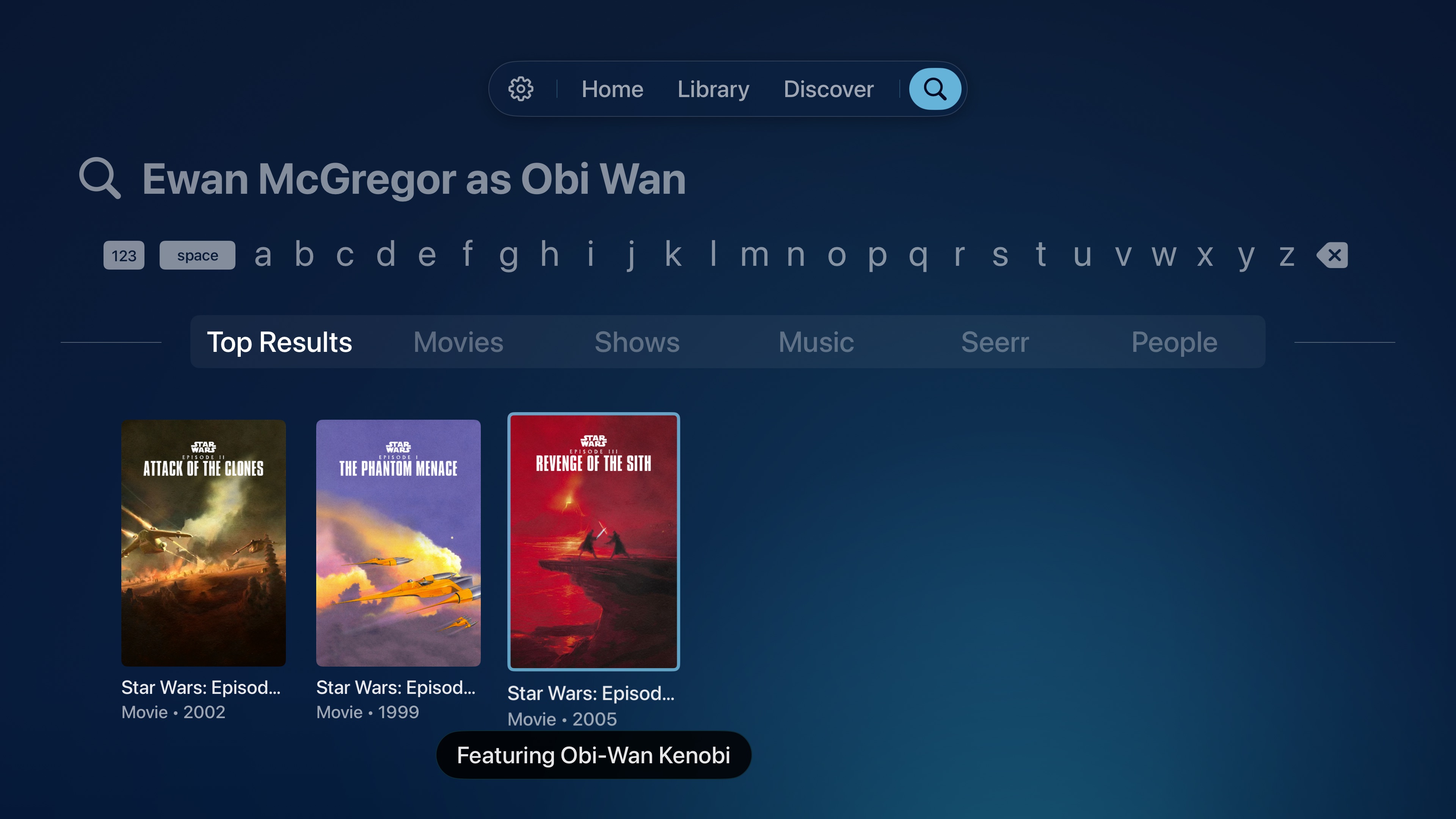
With Seerr connected and the appropriate account permissions, Neptune AI can also surface titles that are available to request. Titles already in your library continue to open normally, while discovery results remain separate and are never requested automatically. Existing library permissions and parental restrictions continue to apply.
Playback Improvements
A More Useful Cache Timeline
When Full Video Caching is enabled, the playback timeline now gives you a clearer picture of what’s already stored on your device. Cached portions of the file and the active playback buffer now appear together on the same timeline, while uncached areas remain clearly visible.
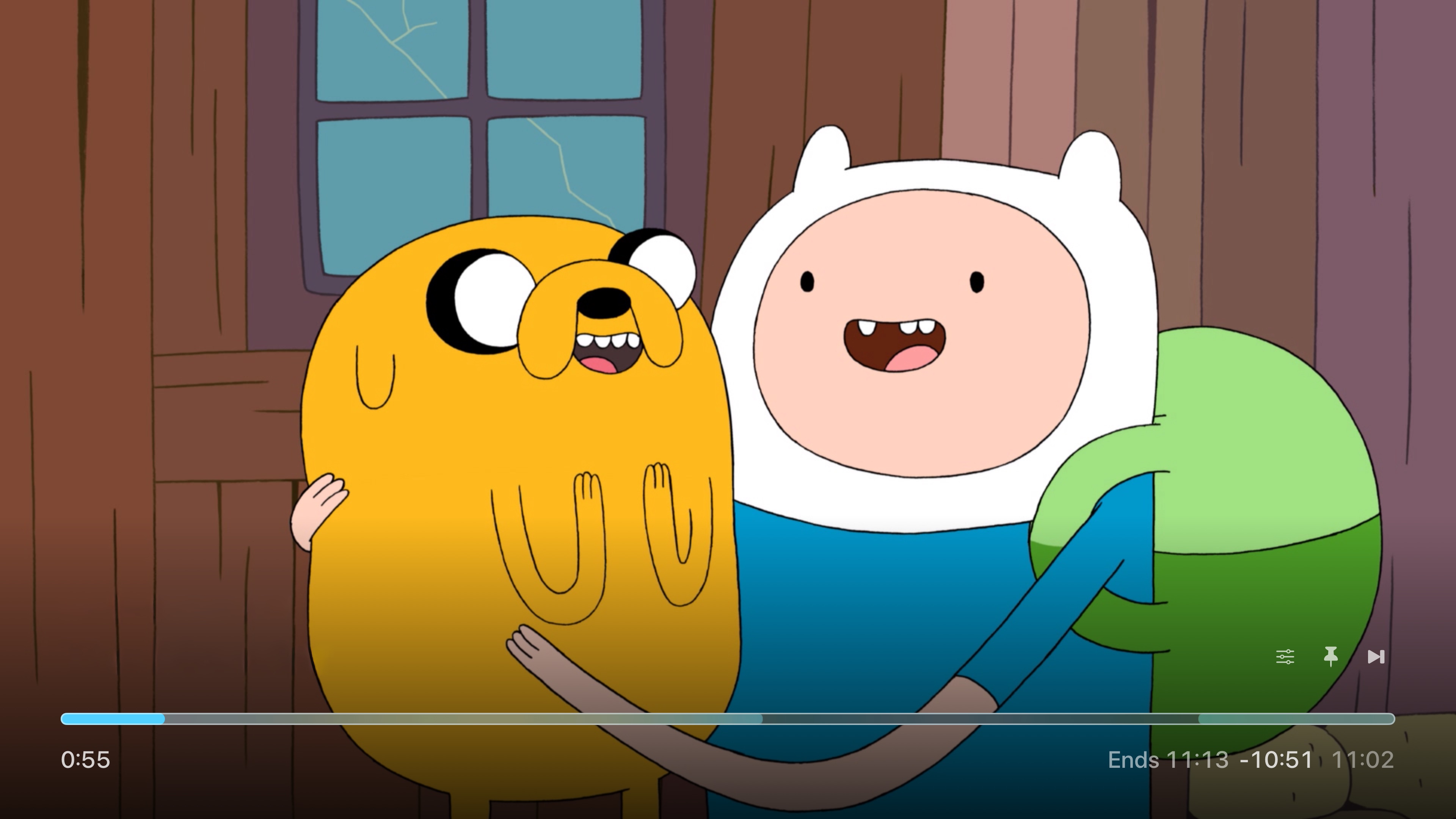
Seeking to a different part of the video also no longer causes previously cached portions to disappear from the timeline, giving you a more accurate view of what Neptune has retained throughout the session.
Better Playback Diagnostics
Along with updates to Neptune’s internal playback logging system, new mechanics have surfaced for users to diagnose and report audio drift issues during playback. These issues are difficult to spot as they can sometimes be very subtle or only occur after long view sessions without any seeks or breaks.
If you experience any audio drift issues during playback, you can now flag the exact moment when you started noticing the issue, and whether you’re hearing the audio ahead of the video or if the audio is trailing behind the video. This greatly helps log analysis whenever a report is filed.
Recovery following seeks, paused transcoded content, track switching, subtitle selection, and thumbnail loading have also seen improvements. These changes are part of continued work on Trident, the bespoke player powering Neptune’s playback.