Release
Neptune: Version 1.4
tvOS Profiles, Account PINs with Face ID, Display Scaling, Siri playback controls, revamped menus, native TheIntroDB integration and more.

Accounts & Profiles
Support for tvOS Profiles
tvOS profiles now get their own Neptune accounts, replacing the previously shared list. Switch profiles in Apple TV’s Control Center and Neptune follows automatically. Each profile can hold multiple accounts across different servers, and the same account can belong to more than one tvOS profile.
If you’re updating from Neptune 1.3 on an Apple TV with multiple tvOS profiles, the one-time Verify Your Accounts check lets you choose which accounts belong on the current profile. Removing an account here leaves it available to other profiles that use it.
If you have trouble verifying your accounts, it is recommended that you go into
Settingsand useResetto reset Neptune for all profiles on the device.
To keep accounts secure, you can protect it with an optional four-digit Account PIN, managed from the account page under Sign-In & Security. Protected accounts ask you to unlock them before loading. Note that this is separate from the Admin PIN, which protects server administration controls.
Require PIN sets how long Neptune can stay in the background before asking you to unlock again: five minutes by default, with options from Immediately to Never. PINs stay on the device where you set them, so adding one on Apple TV doesn’t lock your phone. With Settings Sync enabled, your other devices can notify you that a PIN was added and offer to set one locally. If you forget a PIN, sign in to that same account to replace or remove it.
Accounts on iPhone and iPad
Neptune for iPhone and iPad now supports the same account features as tvOS, letting you switch between multiple Neptune accounts across servers on the go.
Select your account to manage preferences and security, switch accounts, or choose Add Account to sign in on an existing or new server.
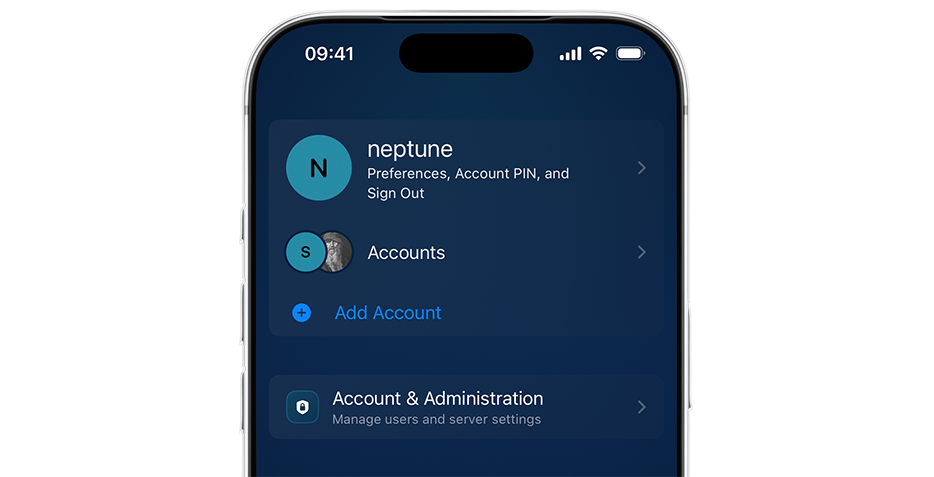
After setting an Account PIN, you can enable Face ID or Touch ID. Neptune tries biometric unlock first, with the PIN as a fallback.
With the Neptune MDM plugin, your account settings stay in sync across all your Neptune clients, regardless of platform.
Adjustable Display Size
A layout that works from a few feet away can feel very different from across the room. Display Size gives Apple TV users four options: Small, Medium, Large, and Extra Large.
The setting adjusts cards, text, and spacing together across Home rows, Library grids, and item detail sections. Small fits eight posters across a Home row; Medium keeps the familiar seven; Large shows six; and Extra Large shows five. Larger sizes give each title and its details more room, while smaller sizes let you see more of the library at once.
You can change your Display Size using Layouts -> Display -> Display Size from within your Account’s Appearance. This option follows the account through the Account Sync, where user preferences are backed up to the server, and a Device Override can keep a different size on a particular Apple TV.
See What’s Coming Up Next
Up Next has a new presentation on Apple TV, iPad, and iPhone in landscape. Near the end of playback, the video shrinks into a live window while the next item’s artwork fills the screen. The series logo, episode title, description, and available details appear beside it, with a countdown built into Next Episode or Next Movie. Select Next to advance immediately, or select the video window to keep watching in full screen.
Choose the next episode’s image or series artwork through Up Next Background under Settings -> Playback -> Autoplay. Spoiler protection always takes priority, hiding protected, unwatched episodes’ images and descriptions. The existing countdown rules remain: Auto can run for the remaining credits, while Fixed uses your selected duration.
During shuffle playback, Re-Shuffle offers another episode without leaving the player. Its details and artwork change in place while the countdown continues. Whatever is offered when you press Next or the countdown finishes is what plays.
Playback Changes
Trident receives some brand new features and fixes for audio sync, picture quality, seeking, buffering, and subtitles across Apple TV, iPhone, and iPad.
Subtitles on Skip Back
Enable Subtitles on Skip Back and a short skip backward temporarily shows dialogue subtitles. Once playback catches up to where you left off, Neptune restores your previous subtitle state. Your saved preferences stay unchanged, and choosing a subtitle yourself always takes priority.
This feature is supported on all Neptune clients and can be enabled from Settings, under Playback > Subtitles.
Just Ask Siri
You can now ask Siri to pause or resume playback, go back, skip ahead or jump to a specific time. You can even ask Siri to start over to replay the session from the beginning.
Ask Siri to “Skip forward 90 seconds” to skip a minute and a half ahead, while “Skip to 45 minutes” jumps to that specific position. Without specifying an amount, Neptune uses your configured Skip Interval when you ask Siri to skip playback.
Blu-ray and DVD Images
You can now play the main title of a decrypted Blu-ray or DVD ISO directly from your server, with chapters and language selection, without needing to convert your media into a separate video file first.
Playback Fixes
- Audio sync: corrected timing after seeking, pausing, and resuming, including TrueHD audio and HDR and Dolby Vision playback.
- Picture quality: smoother HDR and Dolby Vision playback across Apple TV models, fixes for incorrect colors in affected files, and cleaner transitions when the television changes display modes.
- Seeking: fixes for repeated or corrupted pictures and unnecessary buffering after a seek, along with faster scrub previews.
- Interrupted streams: improved recovery from connection problems. Playback failures preserve your position without marking the title watched or starting the next episode.
- Endings: fixes for playback hanging at the end of a file or failing to finish after a pause near the ending.
- Picture in Picture and background playback: more reliable progress, pause, resume, and skip controls, including fixes for a frozen picture after skipping.
- Subtitles: improved character and font support, fixes for subtitles appearing outside the picture, and more reliable track switching after a seek. DVD subtitles also follow your chosen subtitle color.
Dolby Atmos and Surround Sound
Dolby Digital Plus Atmos playback has improvements to startup, seeking, resuming after long pauses, and recovery from buffering. These updates also extend to compatible AirPods and other Spatial Audio outputs on iPhone and iPad.
Surround sound responds more reliably when the audio output changes between headphones, speakers, and AirPlay. Dolby Digital and Dolby Digital Plus playback also preserves the original dynamic range, with Night Mode available when you prefer quieter listening.
TheIntroDB sponsorship
Neptune is now a proud sponsor of TheIntroDB; the community-built timestamp database for thousands of shows and movies, adding intro, recap, credits, and preview markers with nothing to install on your server. The integration is free for every Neptune user.

Enable From TheIntroDB under Settings -> Playback -> Skipping; it’s off by default, and Neptune explains the third-party lookup before you turn it on. This feature works alongside your existing media segments, such as those generated by the Intro-Skipper plugin. You can choose run both at the same time or disable them individually if you wish.